Sharing Plugins
Built a game blueprint, a Docker blueprint, a theme or a script you are proud of? You can publish it so other TCAdmin panels can install it with one click — either to the TCAdmin Community Plugin Repository (public, shared with everyone) or to your own repository (private, used only by the panels you choose).
TCAdmin does all the technical work for you. You fill in a short form, click Share, and TCAdmin uploads everything and submits it for you.
Games · Docker blueprints · Themes · Layout templates · Scripts and script modules · Language packs
TCAdmin calls all of these plugins once they are published — they are described the same way and travel the same route, whether you are sharing a whole game or a single script.
If you only want to install plugins that other people published, you don't need this page — see Plugin Repository instead.
Before you start
You need three things:
| What | Why | |
|---|---|---|
| 1 | An administrator account on your panel with the Share permission for Plugin Repositories | The Share button is hidden without it |
| 2 | A free GitHub account — github.com/signup | Plugin repositories are hosted on GitHub. This is the account your submissions will be published under |
| 3 | A Personal Access Token from that GitHub account | TCAdmin uses it to publish on your behalf. You only do this once |
Creating the token (one time only)
The first time you click Share, TCAdmin shows a GitHub Token Setup window and walks you through it:
- Click the link in the window — it opens GitHub with the right options already ticked.
- Give the token a name (for example
TCAdmin Plugin Share), choose an expiry, and click Generate token. - Copy the token GitHub shows you. You can only see it once.
- Paste it into TCAdmin and click Validate & Save.
TCAdmin checks the token, shows which GitHub account it belongs to, and stores it encrypted. From then on, every Share just works.
Anyone with your token can act as you on GitHub. Never paste it into a chat, a ticket or a forum post. If you think it leaked, delete it on GitHub (Settings → Developer settings → Personal access tokens) and create a new one.
Part 1 — Contributing to the community repository
The TCAdmin Community Plugin Repository is a public collection that every TCAdmin panel can install from. It is already added to your panel — you don't have to set it up.
Contributing means: you propose your plugin, the TCAdmin team reviews it, and once it is accepted it becomes available to everyone.
Step 1 — Open what you want to share
Select the item and click Share:
| What you're sharing | Where the Share button is |
|---|---|
| A game | Settings → Games — tick the game, then Share. (Or open the game and use Share at the top.) |
| A Docker blueprint | Settings → Docker Blueprints — tick it, then Share |
| A theme | Settings → Themes — tick it, then Share |
| A layout template | Settings → Layout Templates — tick it, then Share |
| A script | Open the script in the script editor and click Share |
| A language pack | Settings → Languages — open the language, then Share |

On the list pages you can tick several rows — for example a Windows and a Linux version of the same game — and they are submitted together as one plugin.
If you share a theme from the theme's own page and it uses a layout template, TCAdmin offers to publish both together as a theme bundle, so whoever installs it gets the matching look and page layout in one go.
Step 2 — Choose the repository
Pick TCAdmin Community Plugin Repository from the dropdown, and leave Create New Plugin selected.
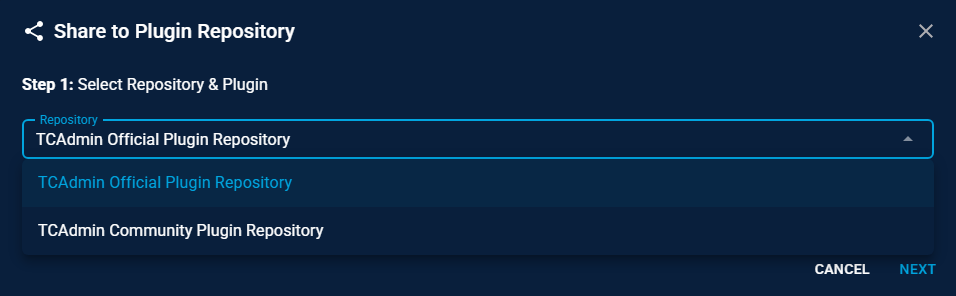
Choose Update Existing Plugin instead when you are publishing a newer version of something you already shared — see Publishing an update.
Step 3 — Describe your plugin
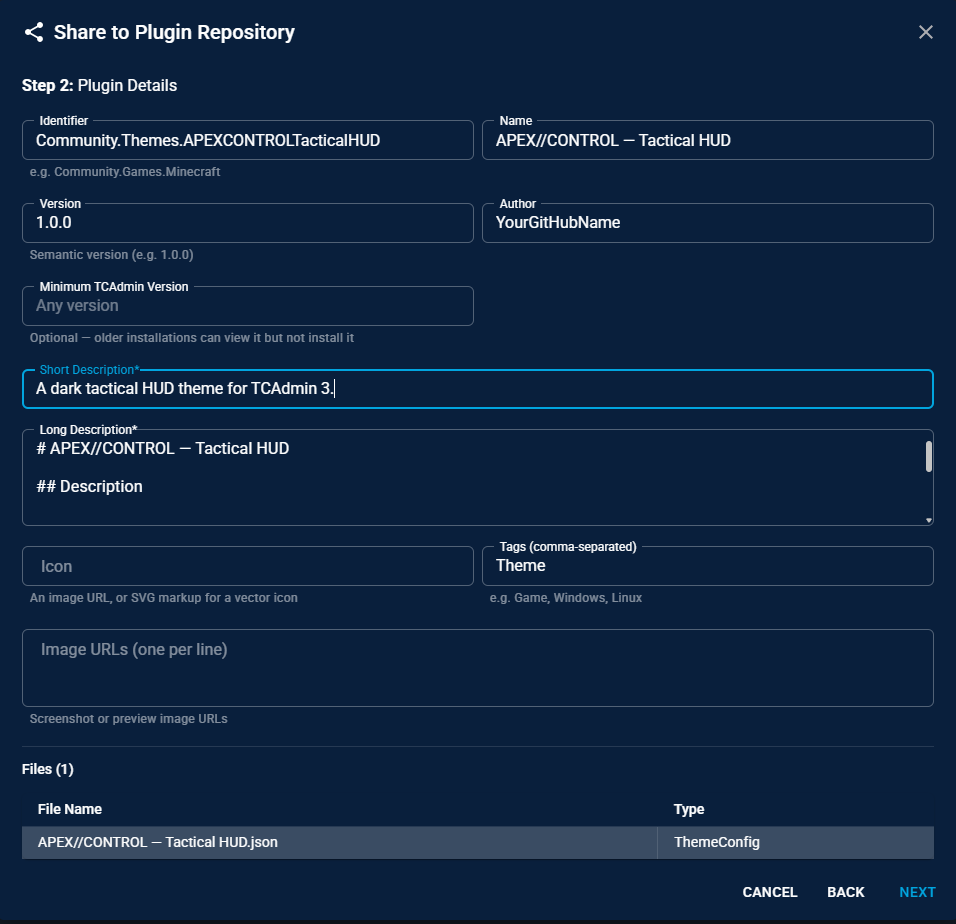
Most fields are filled in for you. What each one means:
| Field | What to put in it |
|---|---|
| Identifier | A permanent ID, like Community.Themes.MyTheme. It never changes once published, so pick something unique. |
| Name | The name people will see. |
| Version | Start at 1.0.0. Increase it every time you publish an update. |
| Author | Your name or your company's name. |
| Minimum TCAdmin Version | Leave blank unless your plugin needs a recent TCAdmin feature. Panels older than this can see it but can't install it. |
| Short Description | One line — this is what people read on the browse cards. Required. |
| Long Description | The full description. Required. A short outline is pre-filled for you; replace the placeholder headings with real text. |
| Icon | Optional. Either a link to an image, or the SVG markup of a vector icon pasted straight in — a vector icon takes the panel's own colour and stays sharp at any size, so it is the better choice. |
| Image URLs | Optional links to screenshots, one per line. |
| Tags | Pre-filled, e.g. Theme or Game, Windows. |
Tags decide which tab your plugin appears under when people browse the repository. A plugin with no tags is invisible.
Step 4 — Check it, then share
The last step summarises what will be published.
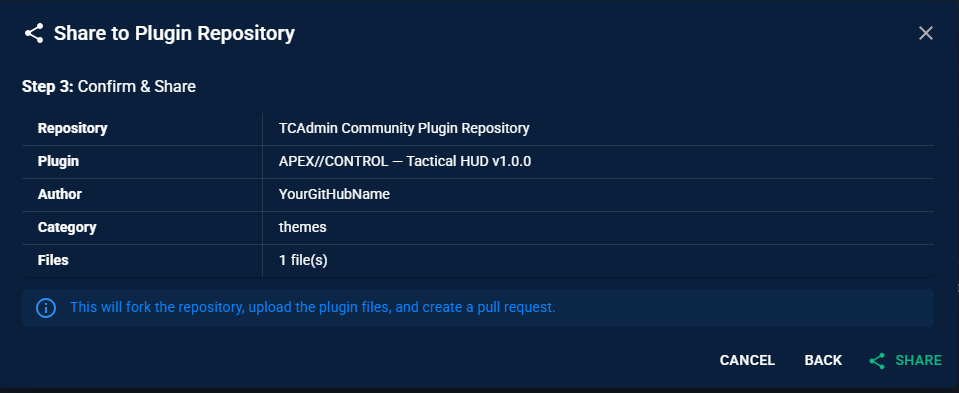
Click Share. TCAdmin then:
- Makes your own copy of the community repository on GitHub (a "fork"),
- Uploads your plugin files into it, and
- Submits them for review as a pull request.
When it finishes you get an Open Pull Request link. That link is where you can follow the review and answer any questions.
Step 5 — Wait for review
The TCAdmin team reviews submissions before they go live. Once yours is accepted it becomes available to every panel, and it will show up after their next repository sync.
Your submission becomes public. TCAdmin automatically removes custom-mod provider API keys (Steam, Nexus, Modrinth) from shared game configs, and offers to clear the Steam account. Everything else is published as-is — including your own scripts, custom URLs, licence keys typed into variables, and server or company names. Have a look at the item before you share it.
Tips for a submission that gets accepted
- One plugin per submission. Don't bundle unrelated things together.
- Test it first on a real service, ideally on a clean panel.
- Write a real description. "Minecraft" tells nobody anything; "Minecraft Java Edition with automatic Paper builds and RCON pre-configured" does.
- Name things clearly — the name and identifier are permanent.
Part 2 — Creating your own repository
A private repository is the right choice when you want to:
- reuse your own games, themes and scripts across several TCAdmin panels,
- keep customer-specific or paid configurations out of public view, or
- keep a backup of your work outside the panel.
It works exactly like the community repository, except you own it, so there is nobody to wait for — you approve your own submissions.
Step 1 — Create the repository on GitHub
- Go to github.com/new.
- Give it a name, for example
my-tcadmin-plugins. - Choose Private (only you can see it) or Public (anyone can).
- Click Create repository.
The first time you share into a repository that has no files in it yet, TCAdmin adds a short README to it so there is something to build on, and creates the branch. You don't have to prepare anything.
Step 2 — Add the repository to TCAdmin
Go to Settings → Plugin Repositories and click New.
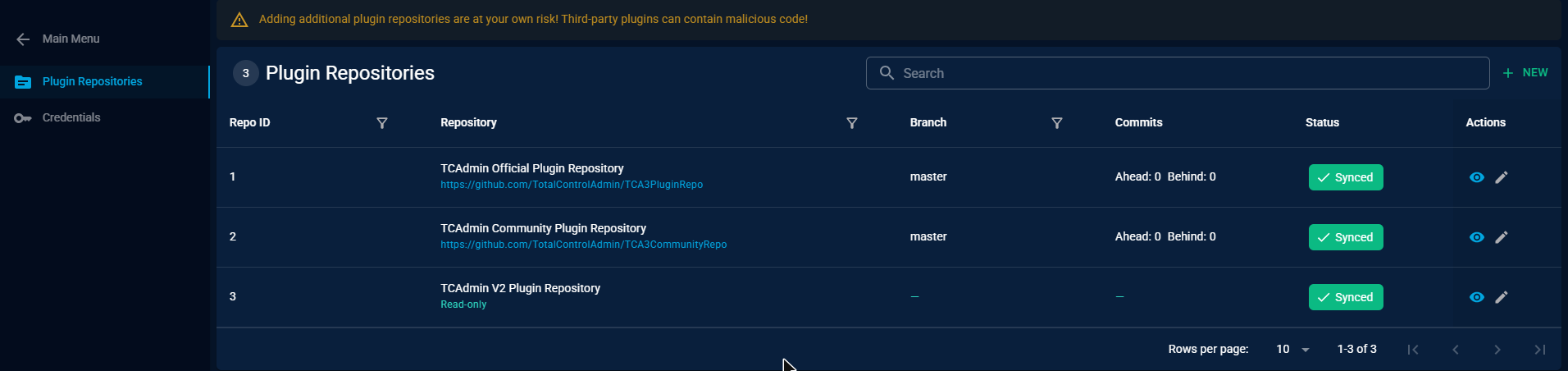
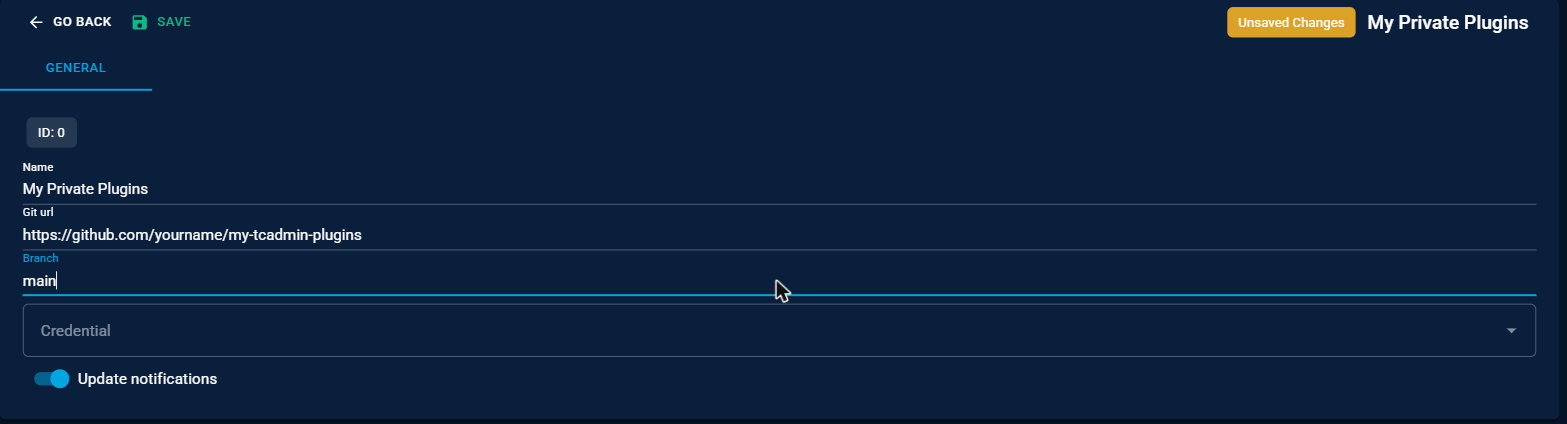
| Field | What to put in it |
|---|---|
| Name | Anything you like — this is just a label, e.g. "My Private Plugins". |
| Git url | The repository address, e.g. https://github.com/yourname/my-tcadmin-plugins. |
| Branch | The branch TCAdmin should read and publish to — usually main. If the repository is still empty, TCAdmin creates this branch for you, so main is a safe answer. For a repository that already has files, it has to match a branch that exists. |
| Credential | Leave empty for a public repository. For a private one, pick the credential you create in step 3. |
| Update notifications | Leave on to be told when the repository has new plugins you haven't installed. |
Click Save.
Step 3 — Add a credential (private repositories only)
A private repository needs a login before TCAdmin can read it. Go to Settings → Plugin Repositories → Credentials and click New.
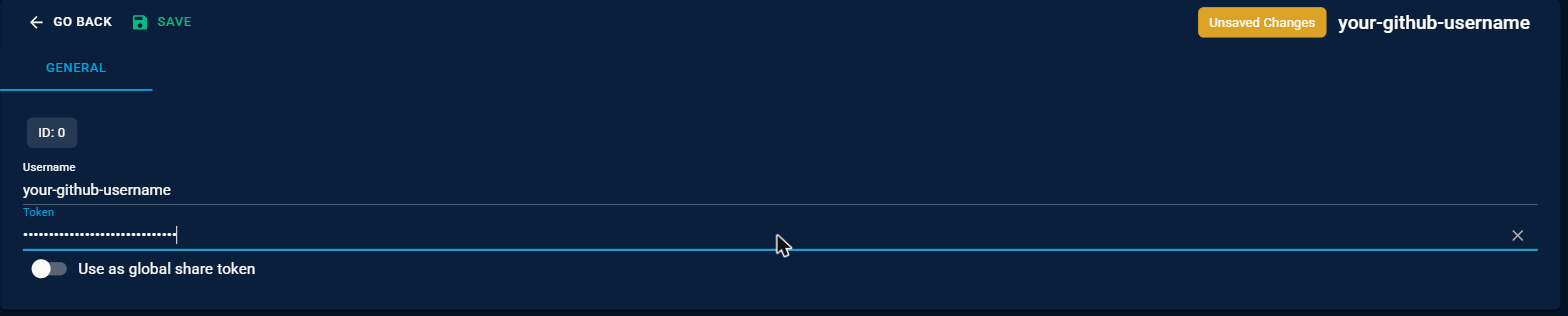
| Field | What to put in it |
|---|---|
| Username | Your GitHub username. |
| Token | A GitHub Personal Access Token. Stored encrypted — it is never shown again. |
| Use as global share token | Turn on to use this same token for publishing to any repository that doesn't have its own. |
Then go back to the repository you created in step 2, edit it, and select this credential.
The token TCAdmin offers to create for you covers public repositories only. For a private repository, create the token yourself at GitHub → Settings → Developer settings → Personal access tokens → Tokens (classic) and tick the repo permission.
Step 4 — Publish into it
Share exactly as in Part 1 — the only difference is that you pick your repository in the dropdown instead of the community one.
Because you own the repository, TCAdmin doesn't need to make a copy: it uploads your files straight into it and opens a pull request there for you to approve.
Step 5 — Approve your own submission
- Click Open Pull Request at the end of the share window (or find it on GitHub under the Pull requests tab of your repository).
- Click Merge pull request, then Confirm merge.
Your plugin is now part of the repository.
Step 6 — Use it on your panels
Back in TCAdmin, Settings → Plugin Repositories picks up the change automatically within the hour. To see it immediately, click Sync on the repository's row.
Then open the repository, find your plugin, and install it. On every other panel that should get your plugins, repeat steps 2 and 3 — add the same Git url, and the same credential if the repository is private.
Publishing an update
Never re-share a plugin as a brand new one — publish a new version of the existing one instead, so people who installed it are offered the update.
- Click Share on the updated item as before.
- Choose the same repository, then Update Existing Plugin, and search for your plugin.
- TCAdmin fills in everything from the previous version and bumps the version number for you. The version must be higher than the previous one.
- Continue through the wizard and share.
Panels that already installed it will see an update is available the next time the repository syncs.
Troubleshooting
| What you see | What it means |
|---|---|
| "No repositories with configured tokens found." | You haven't set up a GitHub token yet. Close the window, click Share again, and complete the GitHub Token Setup step. |
| "Token is invalid." | The token was mistyped, has expired, or was deleted on GitHub. Create a new one. |
| "Branch '…' does not exist in …" | The Branch field doesn't match any branch on GitHub — usually main where the repository uses master, or the other way round. The message lists the branches that do exist; put one of them in the field and share again. |
| "The GitHub token cannot see …" | Your token can't reach that repository. This is nearly always a private repository being shared to with the token TCAdmin generated for you, which only covers public ones. Create a new token on GitHub with repo ticked (see the note in step 3) and save it. |
| "Failed to fork repository" | The token doesn't have permission for somebody else's repository — you can only publish to a repository you can fork. |
| The repository row says it is behind | Click Sync on that row in Settings → Plugin Repositories. |
| Your plugin doesn't show up after merging | Sync the repository. If it still isn't there, check that the plugin has at least one tag — untagged plugins don't appear under any tab. |
| There is no Share button | Your role is missing the Share permission for Plugin Repositories, or you are not an administrator. |
What's next?
- Plugin Repository — browsing and installing plugins
- Themes — building a theme worth sharing
- Layout Templates — rebuilding pages